Chromatic for agents Beta
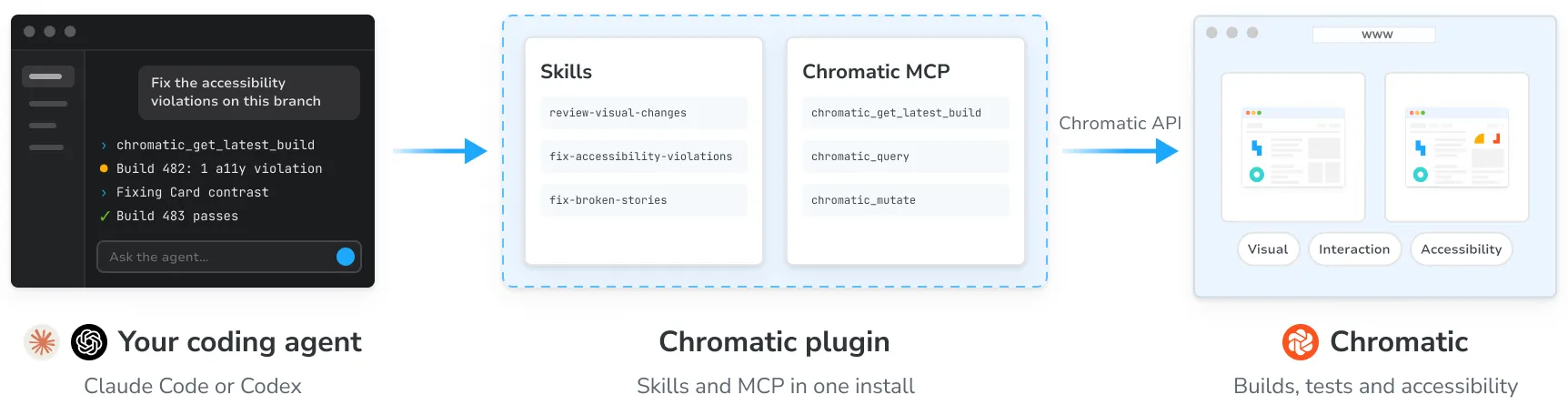
Chromatic for agents lets your coding agent read every Chromatic build and act on what it finds. It fixes broken stories and accessibility violations in your code, points out the visual changes that need a person to review, and tells you whether your branch is ready to merge.
It has four parts:
- Chromatic MCP server connects your coding agent to your Chromatic account.
- Skills teach your agent workflows such as fixing accessibility violations or reviewing visual changes.
- Plugins for Claude Code, Codex, and Cursor bundle the server and skills into a single package.
- Chromatic API enables you to build custom agent workflows and pull data into internal dashboards.
Get started
The plugin is the recommended starting point: it configures the MCP server, installs skills, and (for Claude Code) sets up hooks that check your build after each push.
1. Install the Chromatic plugin for your agent
claude plugin marketplace add chromaui/chromatic-plugins
claude plugin install chromatic@chromatic
Then start a session, run /mcp, choose chromatic, and approve the request in your browser. In the Claude Code desktop app, send any first message, such as “hi”, before you run /mcp.
claude mcp list should show plugin:chromatic:chromatic.
codex plugin marketplace add chromaui/chromatic-plugins
codex plugin add chromatic@chromatic
codex mcp login chromatic
Requires the Codex CLI version 0.148 or newer. Check with codex --version.
Approve the request in your browser. codex mcp list should show OAuth in the Auth column.
In the ChatGPT app, quit and reopen it, then pick Codex in the sidebar. Plugins lists Chromatic under Personal. Sign in with a ChatGPT account, not an API key, or Plugins stays locked.
https://github.com/chromaui/chromatic-pluginsOn a Teams or Enterprise plan, an admin imports this repository once: open the team marketplace settings, choose Import from Repo, and paste the URL. Each person then installs chromatic from Customize and signs in to Chromatic in the browser the first time the agent calls a tool.
Cursor doesn’t run the plugin’s hooks, so your agent checks the build when you ask.
On an individual Cursor plan, use the Other agents tab to add the server and install the skills.
# Choose skills from a list
npx skills add chromaui/chromatic-plugins

# Add one skill
npx skills add chromaui/chromatic-plugins --skill fix-accessibility-violations

# Update the skills you installed
npx skills update
Add --global to install the skills for every project rather than the current one. If your agent has no skills support, skip this step. It can still use the tools.
Install the MCP server: In your agent’s MCP settings, add a remote server with the URL https://mcp.chromatic.com/mcp (Streamable HTTP). Leave any OAuth client ID and secret empty.
Your agent identifies itself with a client metadata document (CIMD) when it logs in, and your browser opens chromatic.com for you to approve the request. Any agent that supports remote MCP servers over Streamable HTTP and logs in with CIMD can connect.
If you run into issues, check the Add the MCP server by hand section.
2. Verify the connection
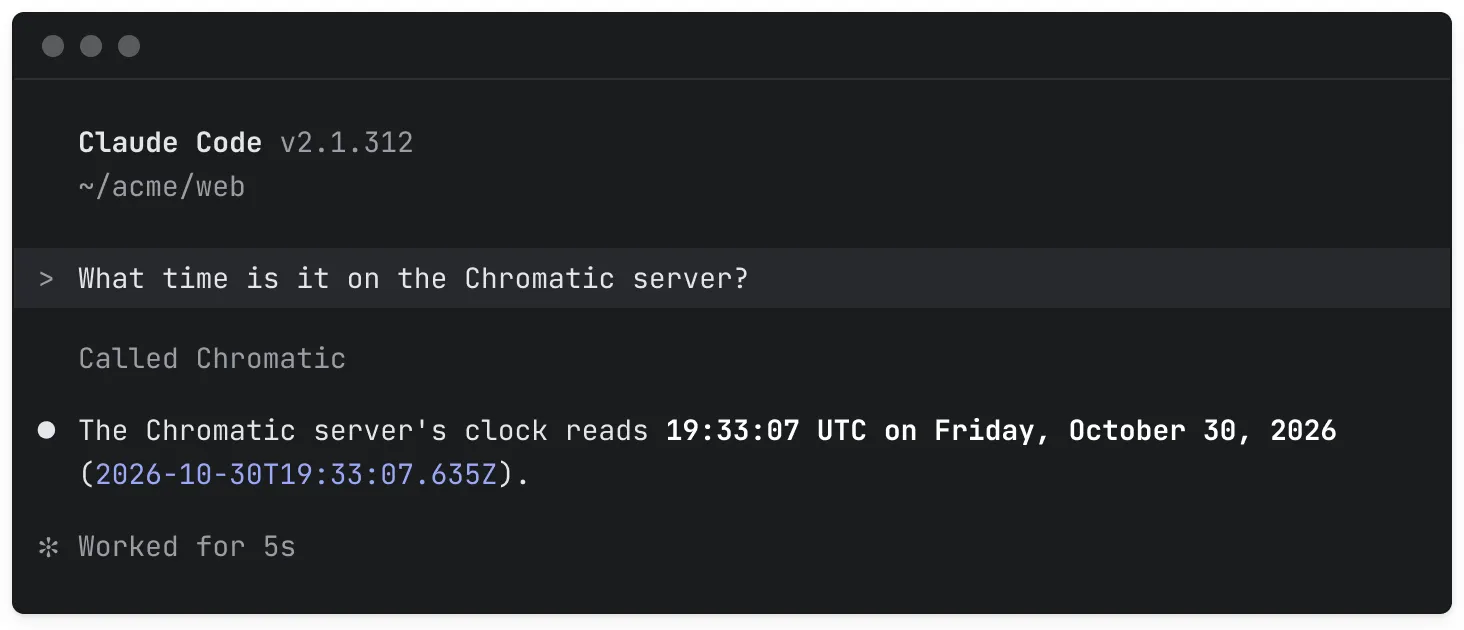
Ask your agent: “What time is it on the Chromatic server?” If it answers with a time, you are connected and logged in.
3. Connect your project
Your agent needs to know which Chromatic project your repository belongs to. It reads the projectId from chromatic.config.json at the root of your repository. Ask your agent to connect your Chromatic project, and the connect-project skill finds the project from your Git remote and writes the file for you.
The project ID is not your project token, and your agent never asks for the token. See Chromatic MCP » Project ID for more info.
4. Try out a workflow
Here are a few sample prompts you can ask your agent:
“What’s the latest Chromatic build on this branch?”
Your agent reports the build’s status, how many tests changed or broke, what to do next, and a link to the build.
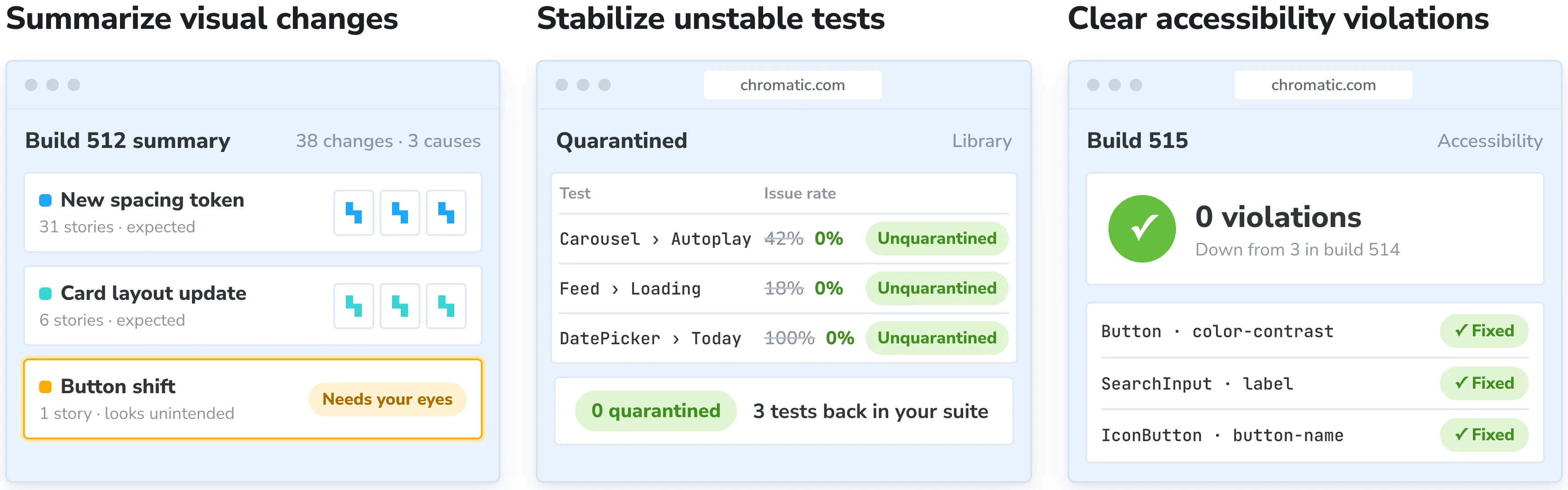
“Fix the accessibility violations Chromatic found in this build.”
It lists the stories whose violations got worse, fixes them in your component source, and checks the fix on the next build.
“Which visual changes on this build look unintended?”
It compares each changed snapshot with your code change, and sorts the changes into the ones your code explains and the ones worth a closer look.
“Find our unstable tests and fix them.”
It finds quarantined and unstable stories, fixes what makes them render differently between runs, and checks the next build.
Next steps
- Run Chromatic with cloud agents: Let the agents in your software factory check the UI on every pull request they open.
- Connect another agent by hand: Add the Chromatic MCP server to Claude Desktop, claude.ai, the ChatGPT app, or any agent that logs in with CIMD.
- Build your own workflows with the API: Query builds, tests, and accessibility results from your own scripts, bots, and dashboards.
Frequently asked questions
How do I update the plugin?
Refresh the marketplace, update the plugin, then restart your session.
claude plugin marketplace update chromatic
claude plugin update chromatic@chromatic
codex plugin marketplace upgrade chromatic
codex plugin remove chromatic@chromatic
codex plugin add chromatic@chromaticTo check your version in Claude Code, run claude plugin list and look for chromatic@chromatic.
How do I remove the plugin?
claude plugin uninstall chromatic@chromatic
claude plugin marketplace remove chromatic
codex plugin remove chromatic@chromatic
codex plugin marketplace remove chromaticWhy does Chromatic show up twice in my MCP list?
You have it as a connector or a server you added by hand, and as a plugin. This is harmless. To keep only the plugin’s server, run claude mcp remove chromatic or codex mcp remove chromatic, or remove the connector.