OAuth clients
An OAuth client is how an app or automated workflow authenticates with the Chromatic API. Each client has a client ID, a set of scopes that limit what it can do, and a type that decides which OAuth 2.0 flow it uses.
| Type | Use when | Flow | Credentials |
|---|---|---|---|
| Service client | Headless automation runs with no user present, such as a CI pipeline, bot, or service | Client credentials (M2M) | Client ID and client secret |
| User client (coming soon) | An agent or tool acts on behalf of a signed-in user, such as local development or an IDE agent | Authorization code with PKCE | Client ID and redirect URIs |
Service clients belong to an account, not a person, so they keep working when the admin who created them leaves. You can create them yourself from your account settings or with the API.
Creating user clients from Chromatic is coming soon. Until then, contact support and we’ll set one up for you.
Manage OAuth clients
Only account admins can view and manage OAuth clients.
Find your OAuth clients
OAuth clients live on your account’s Settings page, in the OAuth clients section under API.
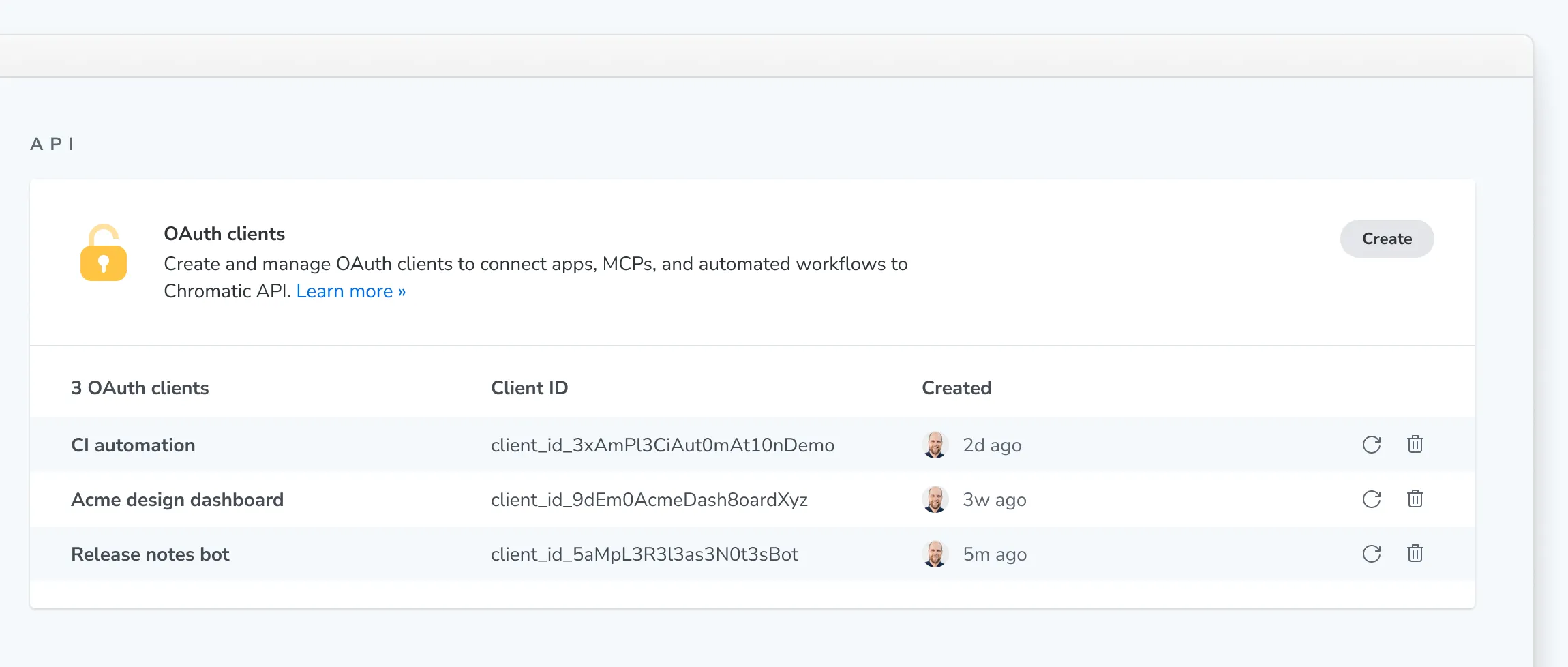
Create a service client
-
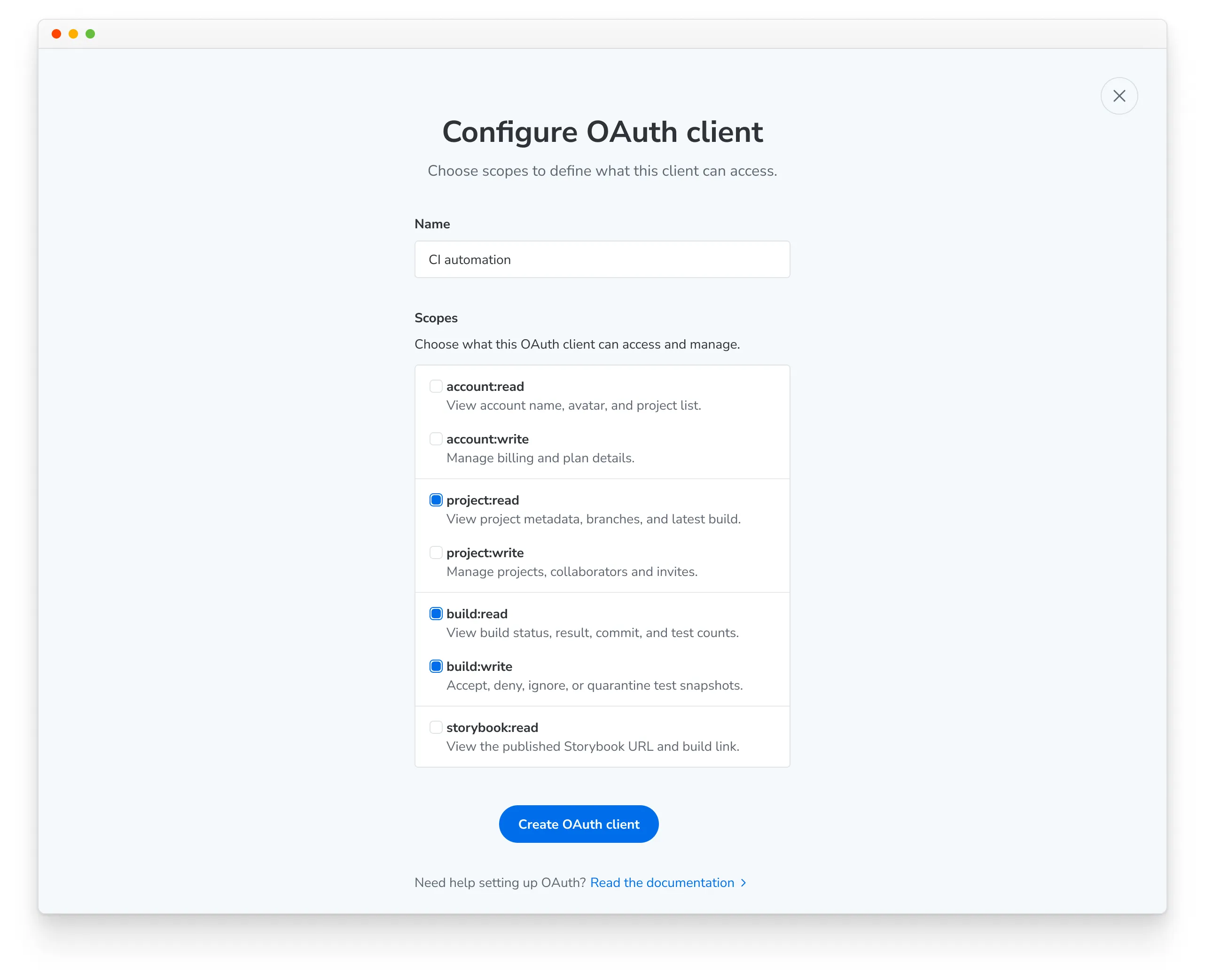
On the account’s Settings page, find the OAuth clients section and click Create. The Configure OAuth client screen opens.
-
Enter a Name for the client.
-
Under Scopes, select what the client can access. See Scopes for what each one unlocks. Grant only what your automation needs.
-
Click Create OAuth client.
The OAuth client is ready screen shows the Client ID and Client token (the client secret). Use the copy buttons to store both in your CI provider’s secret manager or another secure store. Your automation exchanges them for an access token with the client credentials flow.
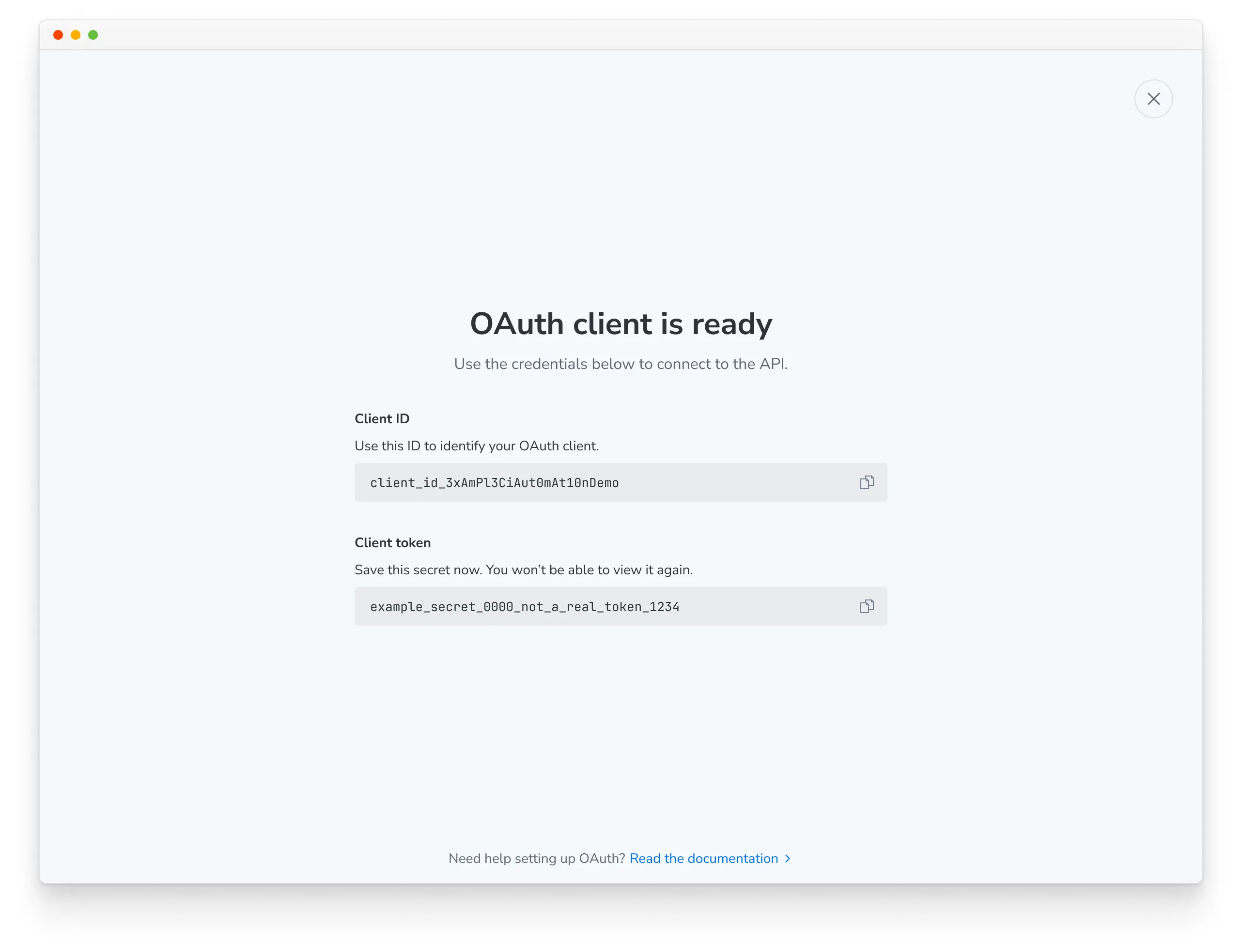
🚨 The client secret is shown only once. Chromatic stores it hashed and can’t show it to you again. If you close the screen without saving it, rotate the secret to get a new one.
Update a client
You can change a client’s name and scopes after you create it. The client ID stays the same.
- In the OAuth clients table, click the client’s row. The Configure OAuth client screen opens with its current settings.
- Edit the Name or change the selected Scopes.
- Click Save changes.
Rotate a client secret
Rotate a secret when it may have leaked, when someone who had it leaves your team, or when you’ve lost it.
-
In the OAuth clients table, find the client and click the Rotate client secret icon on its row.
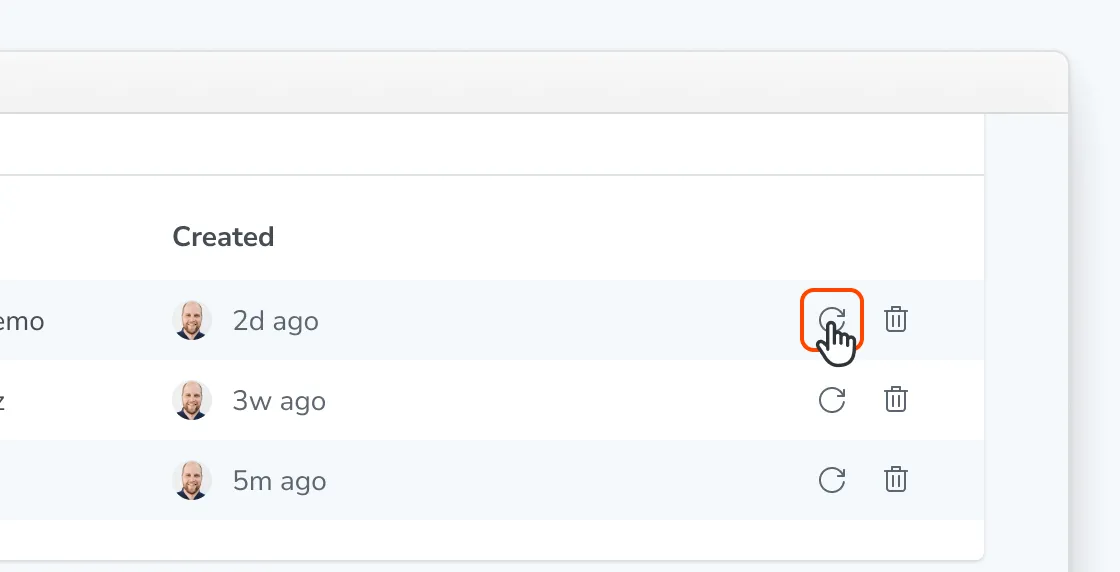
-
Your browser asks you to confirm. Click OK.
The Client secret rotated screen shows the client ID and the new client secret. Copy the new secret now; like the original, it’s shown only once.
Rotating invalidates the current secret immediately. Any integration still using it can’t authenticate until you update it with the new secret, so have the new value ready to deploy before you rotate. The client ID and scopes stay the same.
Delete a client
- In the OAuth clients table, find the client and click the Remove OAuth client (trash) icon on its row.
- Your browser asks you to confirm. Click OK.
Deleting a client immediately revokes its access and invalidates its credentials. Any integration using it can no longer authenticate. This can’t be undone.
Create a service client with the API
If you’d rather script client creation, run the oAuthClientCreate mutation. It creates service clients only. You can also list, update, rotate, and delete service clients with the API.
Find your account ID
Sign in to Chromatic and pick the account you want from the account picker. The account’s URL has the form:
https://www.chromatic.com/apps?accountId=<ACCOUNT_ID>Copy the accountId value from the URL. For example, in https://www.chromatic.com/apps?accountId=689126b1bf7b127209b4c5b1 the account ID is 689126b1bf7b127209b4c5b1.
Open the GraphQL explorer
While signed in, go to https://www.chromatic.com/api. This is an Apollo Studio explorer where you can browse the schema and run queries and mutations as yourself.
Run the oAuthClientCreate mutation
Paste this mutation into the explorer:
mutation CreateOAuthClient($input: CreateOAuthClientInput!) {
  oAuthClientCreate(input: $input) {
    clientId
    clientSecret
    name
    scopes
  }
}
And these variables, replacing <account_id> with the ID you found above:
{
  "input": {
    "accountServiceClient": {
      "accountId": "<account_id>",
      "name": "CI Automation",
      "scopes": [
        "account:read",
        "account:write",
        "build:read",
        "build:write",
        "project:read",
        "project:write",
        "storybook:read"
      ]
    }
  }
}
The scopes list above requests everything a service client can do. Remove the scopes your automation doesn’t need. A client can only ever request the scopes it was created with, so granting the minimum keeps the credentials less valuable if they leak.
name is optional. It’s the display name for the client and the machine user behind it, and it defaults to your account name. Names may only contain letters, numbers, spaces, periods, dashes, and underscores.
A successful response looks like this:
{
  "data": {
    "oAuthClientCreate": {
      "clientId": "4f3c9a1e7b2d48f0a6c5e9d3b7182a4c",
      "clientSecret": "9f8e7d6c5b4a392817065f4e3d2c1b0a8f7e6d5c4b3a29180716f5e4d3c2b1a0",
      "name": "CI Automation",
      "scopes": [
        "account:read",
        "account:write",
        "build:read",
        "build:write",
        "project:read",
        "project:write",
        "storybook:read"
      ]
    }
  }
}
🚨 The clientSecret is returned only once, in this response. Chromatic stores it hashed and can’t show it to you again. Copy it now into your CI provider’s secret manager or another secure store. If you lose it, rotate the secret.
The new client also appears in the OAuth clients table on the Settings page.
Scopes
Scopes follow a subject:action pattern. A client can only request the scopes it was created with. See the Scopes reference for what each scope unlocks.
Service clients act on behalf of an account, not a user, so the user:read scope isn’t available to them and the viewer query can’t be used. Use the account query as your entry point instead.
Next steps
Exchange your service client’s ID and secret for an access token using the client credentials flow. If Chromatic set up a user client for you, use the authorization code flow with PKCE instead. Then start making requests.
Treat the client secret like a password. Store it in a secret manager and never commit it to your repository.